Congrats on purchasing our brand new Photoshop Actions – The Uptown Collection! If you’ve never used Photoshop much you might be a little intimated but as you will see in this quick tutorial, you have nothing to worry about, installing & using these Photoshop actions are actually quite easy!
How to Install Your Photoshop Actions
The fastest way:
Double click on the actions (the .atn file) once you have downloaded them. They will automatically load into the actions pallet in Photoshop.
** Note: Sometimes when you restart your computer the actions may disappear when choosing this install method **
Looking to improve your photography?
Just enter any questions you have about improving your photography below and hit send and get answers & feedback instantly - for FREE!
Submit Questions
The more reliable and better method
After downloading, save your actions to an easy to find folder
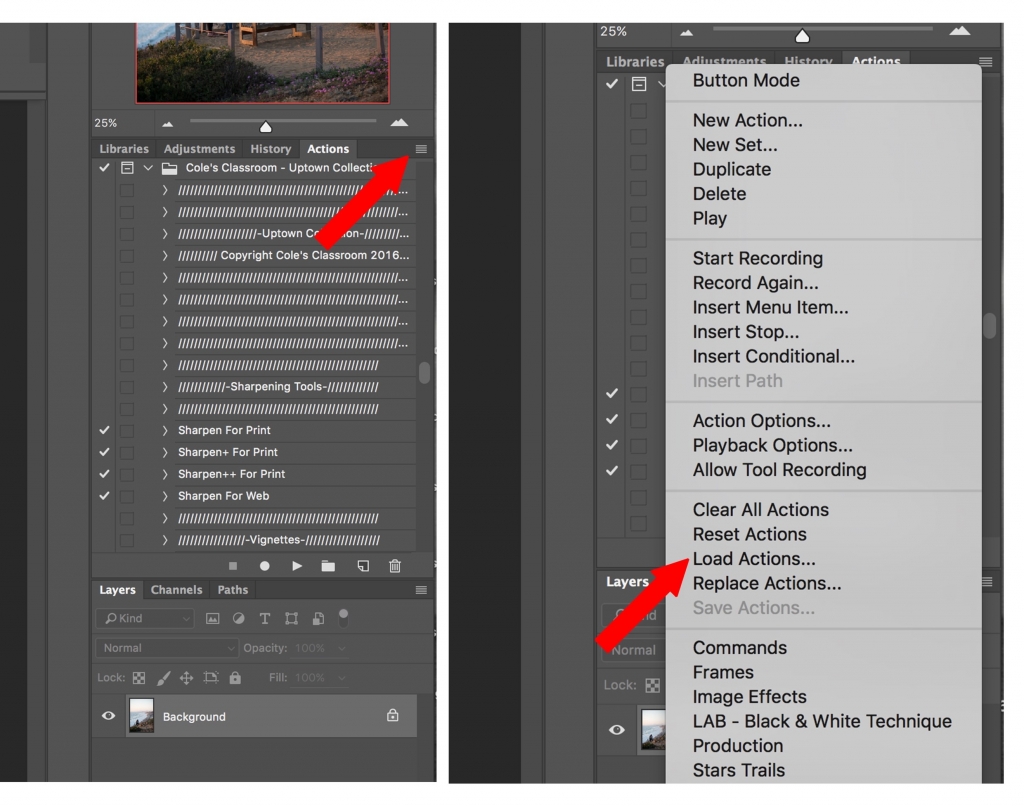
Open Photoshop and and go to the actions palette *Note: if you don’t see your actions palette go to window and click “actions” in the dropdown menu*
Click the actions palette menu button on the top right corner of the actions palette
From the menu select “Load Actions”
Select the actions inside the folder where you saved them ( file ending in .atn)
Click open and the actions will load into the actions palette
Your actions will remain loaded in the actions pallet unless you delete the original folder where you saved the actions
Watch this Quick Video Tutorial Showing How to Install Photoshop Actions
New to Photoshop? Make Sure to Watch this Video with Me Walking You Through How to Use the Photoshop Actions!
The warp tool in photoshop is a quick and easy way to make some small adjustments to your image using a simple click and drag method and a few control points. Adobe Photoshop is a powerful piece of software that allows you to transform an image for any use case, including adding rights reserved symbols…
Need to learn how to fix an underexposed photo in Lightroom? Learn why your photos are dark, how to brighten dark photos and how to fix issues with noise Perviously, we talked about how to correct an overexposed image in Lightroom, where I showed you the quick and easy methods I use to recover information from…
Why You Should Crop Photos Sometimes, photos aren’t quite right exactly as taken, but you don’t necessarily need to retake the whole picture. At times like this, knowing how to crop in Lightroom can help turn a mediocre image into a great one. Note that some control options may vary in Lightroom Classic, so be…
Panoramic photos are a cool way to showcase seamless images of more expansive physical spaces. Traditional panoramic views are typically of landscapes and cityscapes, but you don’t have to limit your photos to just those. Most photographers create these wider images by stitching together several photos horizontally or vertically from different angles using Adobe Photoshop…
Even if you’re not familiar with the term, you’ve likely seen vignettes in many photos. They’re an effect that darkens the edges of the photo. These shadows help naturally draw the viewer’s eyes towards the center, emphasizing the subject. In the early days of photography, photographers usually tried their best to avoid the vignette effect….
Anyone who’s ever taken a photo knows that learning how to extend background in photoshop and get it exactly as you want can be challenging. Sometimes when editing in Photoshop, you wish that you had framed the image differently. Other times, you realize there was too much going on in the background, or you find…