Congrats on purchasing our brand new Photoshop Actions – The Uptown Collection! If you’ve never used Photoshop much you might be a little intimated but as you will see in this quick tutorial, you have nothing to worry about, installing & using these Photoshop actions are actually quite easy!
How to Install Your Photoshop Actions
The fastest way:
Double click on the actions (the .atn file) once you have downloaded them. They will automatically load into the actions pallet in Photoshop.
** Note: Sometimes when you restart your computer the actions may disappear when choosing this install method **
The more reliable and better method
After downloading, save your actions to an easy to find folder
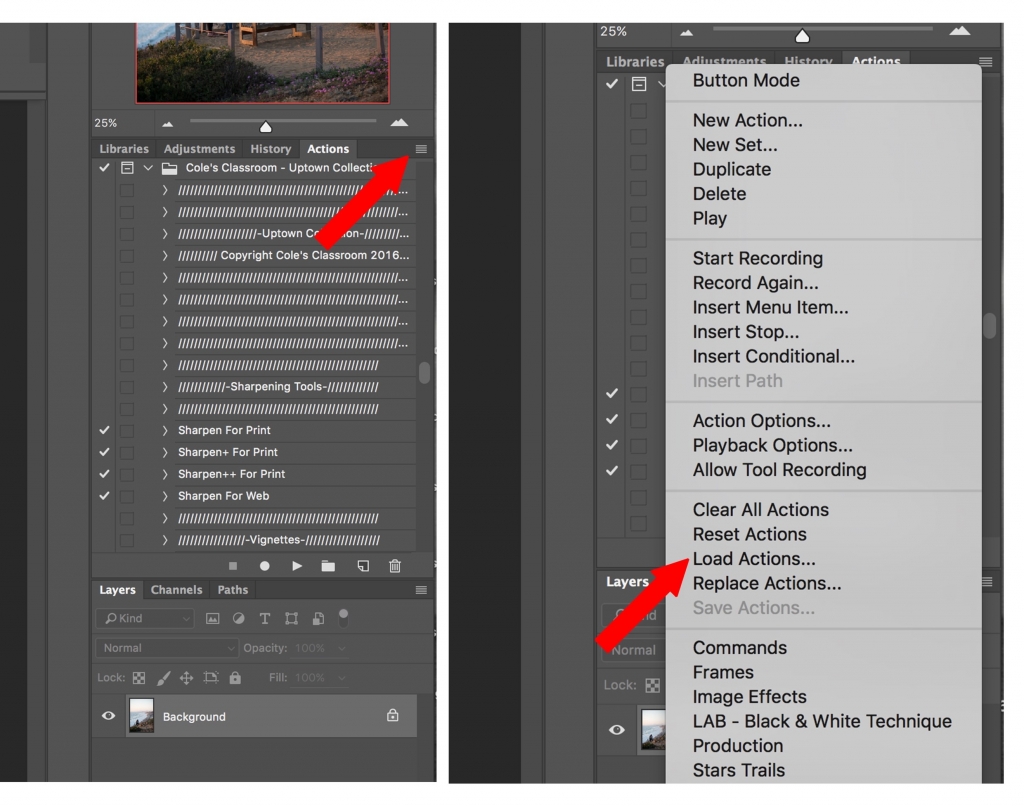
Open Photoshop and and go to the actions palette *Note: if you don’t see your actions palette go to window and click “actions” in the dropdown menu*
Click the actions palette menu button on the top right corner of the actions palette
From the menu select “Load Actions”
Select the actions inside the folder where you saved them ( file ending in .atn)
Click open and the actions will load into the actions palette
Your actions will remain loaded in the actions pallet unless you delete the original folder where you saved the actions
Watch this Quick Video Tutorial Showing How to Install Photoshop Actions
New to Photoshop? Make Sure to Watch this Video with Me Walking You Through How to Use the Photoshop Actions!
Solar filters help protect both you and your camera from the intense effect of the sun’s light, and you’ll need to invest in one if you plan on photographing the sun. Most solar filters cost upwards of $100, so thrifty photographers have been building their own DIY solar filters instead of purchasing one for years. …
Have you snapped an image that ends up being unclear or blurry? The process of sharpening edges in Photoshop will significantly improve the quality of your image. Many photographers make the mistake of sharpening the entire image and applying the sharpen picture everywhere. There are many instances where you need to be more selective in…
Once you are in ready to import your photos in Lightroom you will see a panel in the upper right hand side titled – “file handling”. Understandting what the heck the different file handing options are can be a bit confusing so I am going to break it all down for you in a quick…
Here’s our step by step directions for How to Install Lightroom CC Mobile Presets! Step 1: Make sure you download the Adobe Lightroom CC Mobile App to your phone! This is obviously the essential step before downloading your presets! This means you can actually install them to Lightroom itself! Once downloaded, it will ask you…
You may have heard the term, you might have seen Lightroom presets in action, and heck you might even have some presets you’ve downloaded or purchased – but do you know how to best use Lightroom presets or how to easily update and customize presets for your own style? Lets quickly recap with what the…
Anything is possible with Adobe Photoshop software. One of the fantastic capabilities of the program is the ability to make your photos look like paintings. This article will show you how to make an image look similar to a painting in Photoshop. Photoshop contains many built-in filters, effects, and tools that will allow you to…